Choose the balance that suits your device
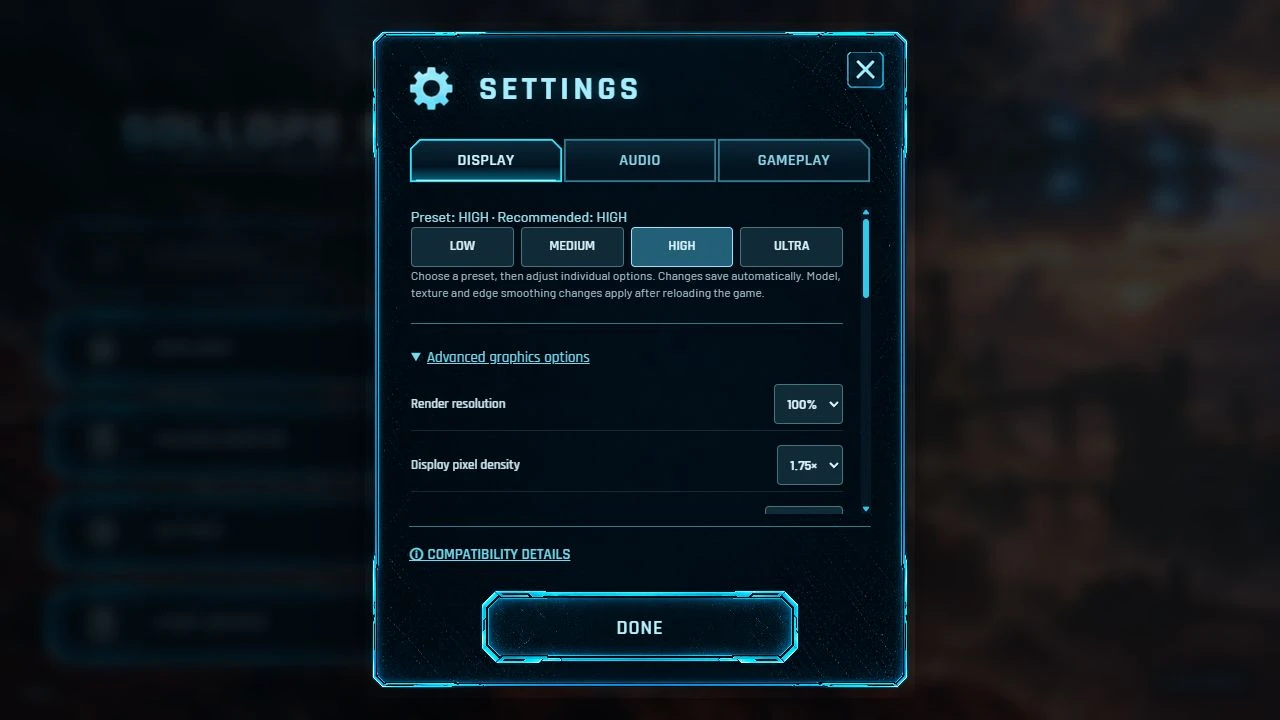
The latest build adds a much fuller set of graphics controls. Open Settings → Display to choose Low, Medium, High or Ultra, or use the recommended settings as a starting point.
The presets adjust several parts of the game together, rather than changing a single visual effect. You can then open the advanced options and tune the details yourself. Your choices are saved for the next session.
More control than a quality switch
You can now adjust render resolution, display pixel density, a 30 or 60 FPS frame-rate limit, shadows, local lights, surface detail maps and effects density. There are also controls for idle gestures, barracks preview animation, terrain detail and the 3D launch cinematic.
Some changes apply while you play. Options that require a reload are labelled, and the settings panel provides a Save & reload graphics button. If an action is still underway, the game asks you to wait until it finishes before reloading.
Lighter assets where they help
Lower detail settings can use prepared model and texture variants, alongside a texture-memory cap. That gives the game a way to reduce the weight of the assets it loads, as well as the work involved in drawing them.
The controls are shared across the battlefield, model inspection screens and dropship presentation. Low settings also simplify effects and animation, while higher presets allow more visual detail. The right balance will depend on your hardware and browser.
Adaptive resolution
Low and Medium presets enable adaptive resolution. When rendering remains slower than the selected frame target, the game can reduce its drawing resolution; after a sustained faster period, it can gradually raise it again. You can also switch this behaviour on or off yourself.
This is another way to trade a little sharpness for smoother play when a scene becomes demanding. It does not change the tactical rules or the decisions available to your squad.
Equipment that looks equipped
The update also revises character model and pose handling, stowed equipment and weapon placement. Medical packs now have their own 3D equipment model, and the Nightjar’s hangar representation is shared more consistently with its launch presentation.
These changes continue the work on how soldiers, aliens and their gear look both during a mission and when inspected aboard ship.
Try the latest build
Start with the recommended preset, then adjust the options that matter most to you. If your device struggles with a scene, Low is a useful starting point; if you have headroom, try increasing the detail.
Gollops Star remains free to play and in development. Read the earlier ship-systems update for the campaign clock, new Armoury and Xeno Research screens, or subscribe for future development notes.